QUICK START GUIDE
How to use OptikOku
Turn question images into a neatly arranged exam PDF, or prepare a printable answer sheet in minutes.
Your files stay on your deviceSelected images are processed in your browser and are not uploaded to an application server.
Choose what you need
Open either tool from the home page. Both work in your browser without installation.
Create an exam PDF from question images
Prepare one image per question. Start by selecting PNG, JPG, or JPEG files.
- 1
Step 1: Upload your images
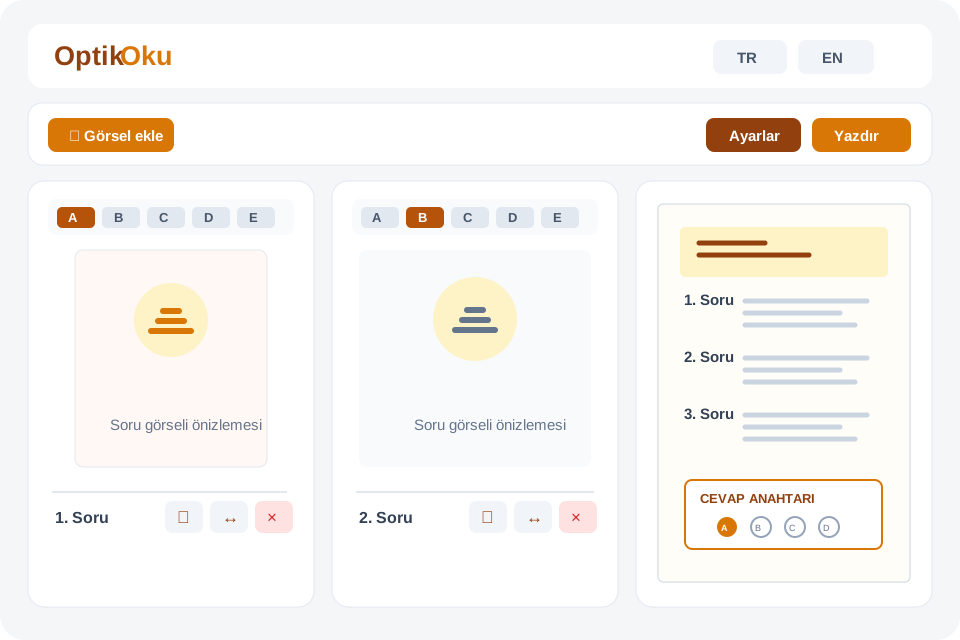
On the Create Questions page, click Select Images. You can select multiple question images at once.
- 2
Step 2: Set answers and edit images
Choose the correct option on each question card. If a filename ends in _C or -C, such as question1_C.png, the answer is detected automatically. You can also crop, enlarge, or delete an image.
- 3
Step 3: Choose page settings
In Settings, choose whether to include an answer sheet and its options, the maximum questions per page, and the spacing between questions.
- 4
Step 4: Preview and download the PDF
Click Print, choose a theme, and edit the heading or description in the preview. The download button creates your exam PDF.
Create an answer sheet
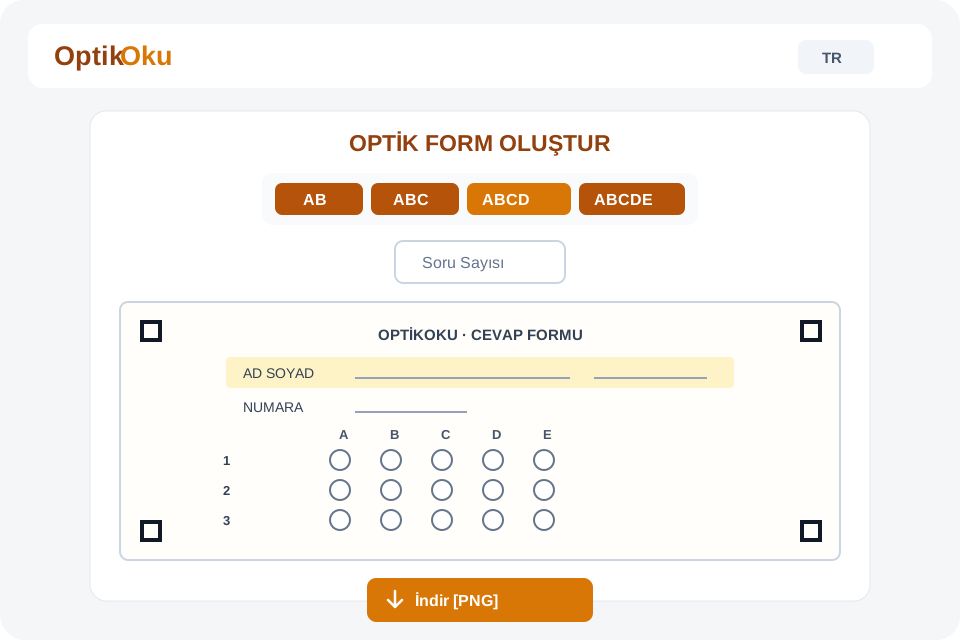
Use Create Answer Sheet when you only need a separate answer form; the output is a PNG image.
- 1
Step 1: Choose the number of options
Select the option count for your test using AB, ABC, ABCD, or ABCDE.
- 2
Step 2: Enter the question count
Enter a value from 1 to 30 in the question count field. The form preview updates automatically.
- 3
Step 3: Download as PNG
Click Download below the preview to save the answer sheet to your device.
Before you start
- Use a clear, legible image for each question.
- For automatic answer detection, end each filename with _A, _B, _C, _D, or _E.
- Review the theme, headings, and descriptions in the PDF preview before downloading.